From auction hall to phone.
Bid online, no hall, no paperwork run.
- Branch
- Auctions
- Platforms
- App · Desktop web
- Role
- Associate UX/UI Designer, Quara Digital
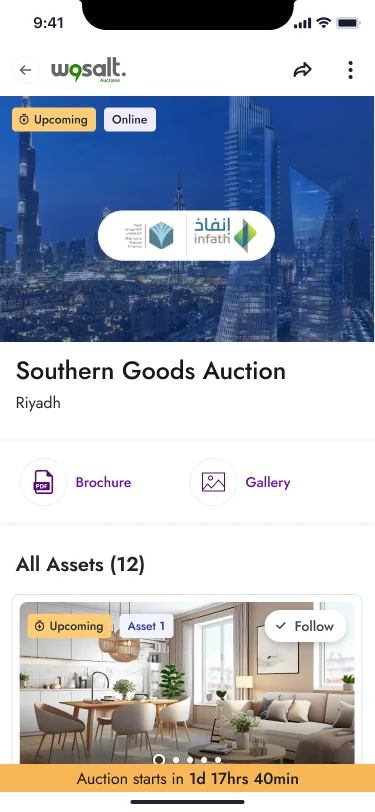
Property auctions in Saudi Arabia meant paperwork and showing up in person. The online-only flow puts the whole auction in the app, from browsing the assets to placing a live bid.
The hard part is trust. Money and identity are involved, so every step has to say what happens next and what it will cost.
01 / Auctions
One auction, three states
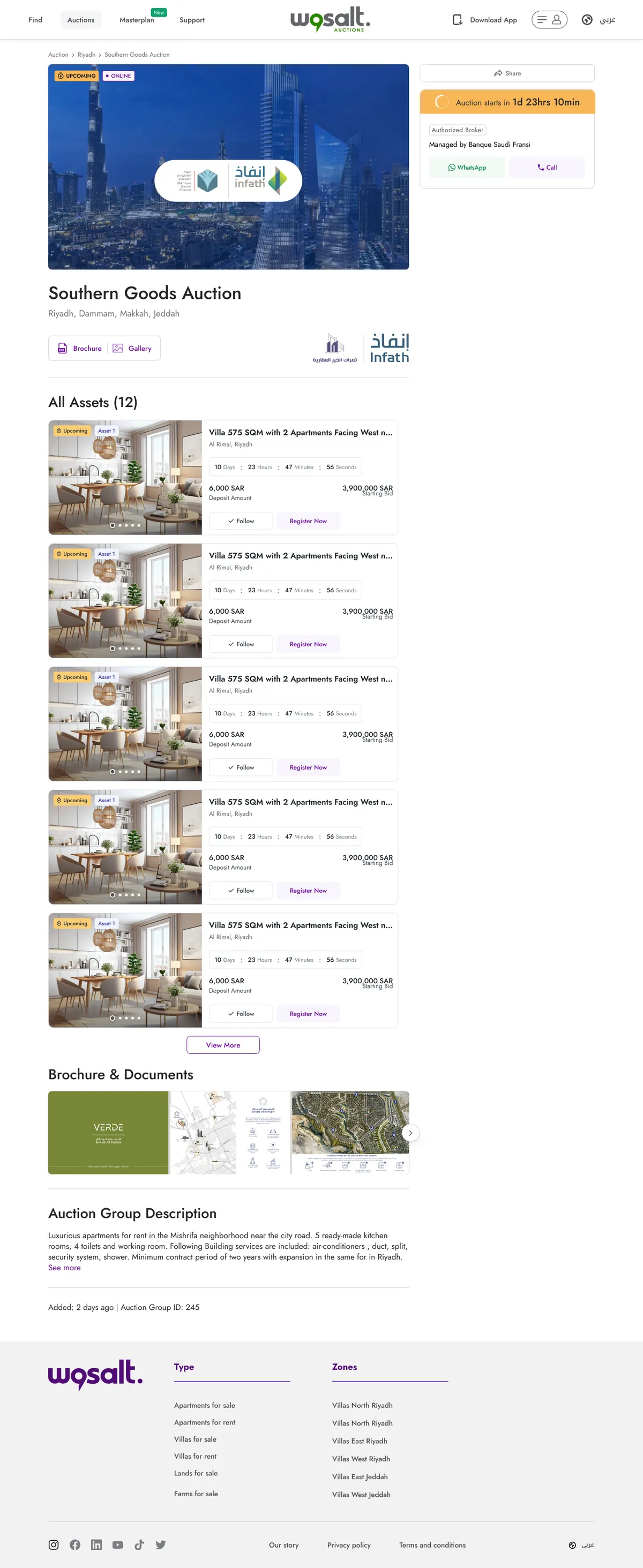
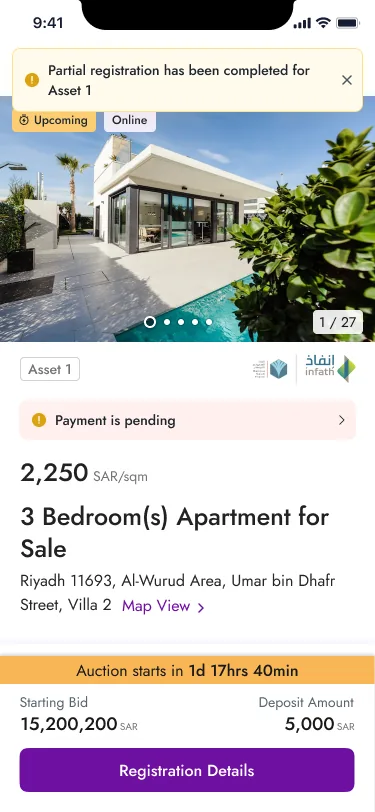
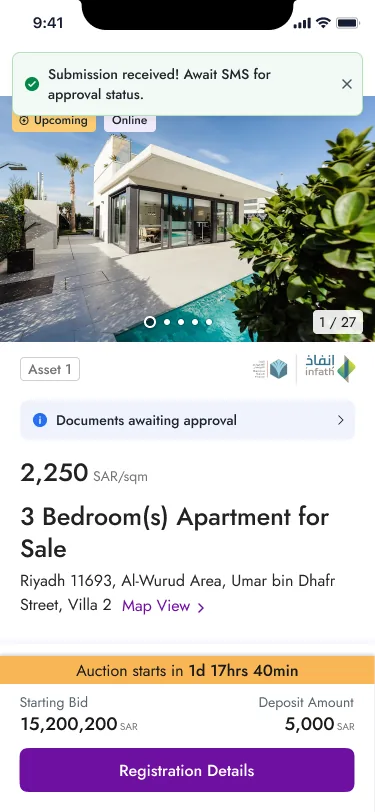
An auction page has to work before, during and after the sale. The top badge says Upcoming, Live or Closed. The countdown, the bid count and the bid history change with it.


02 / Auctions
Know what you need before you start
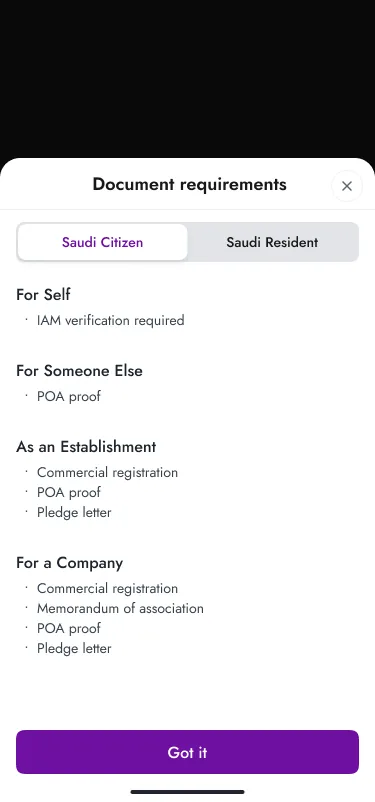
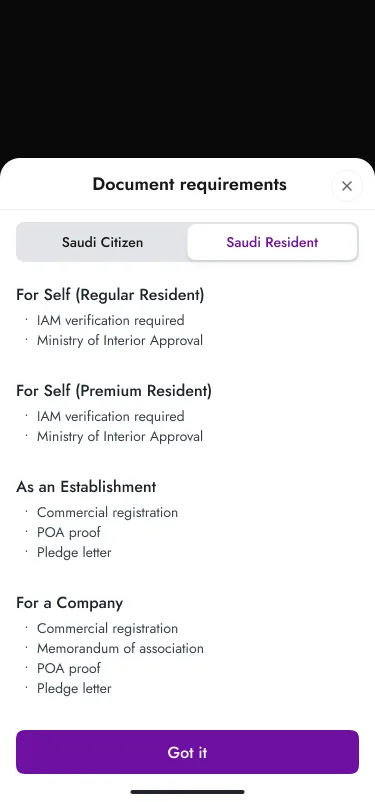
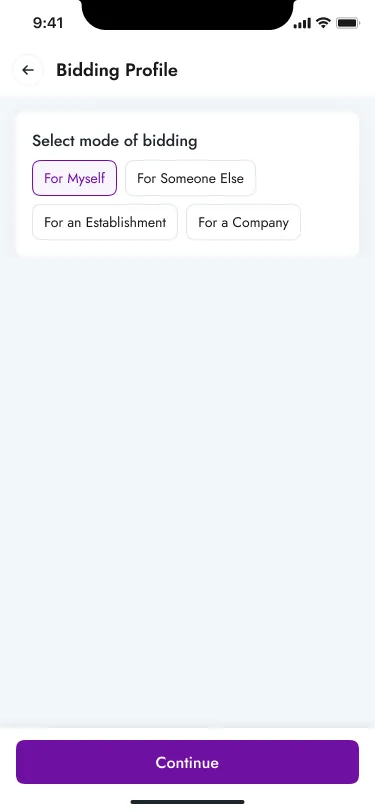
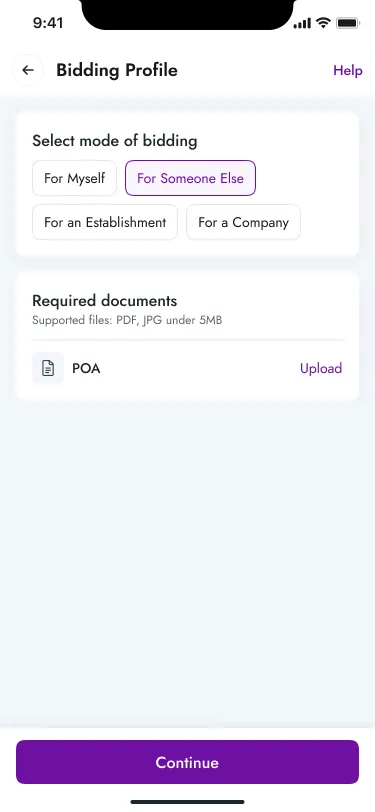
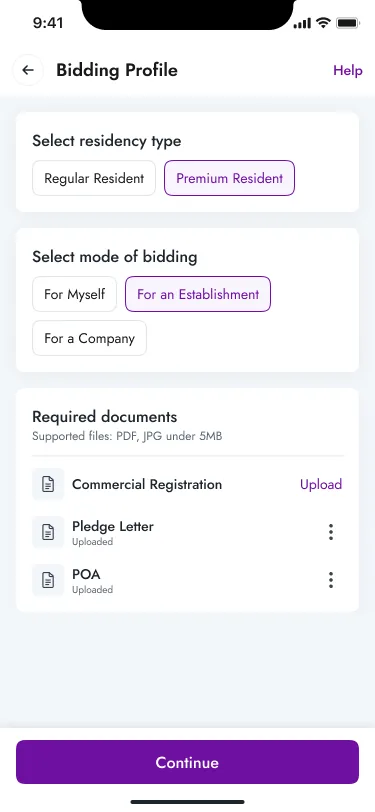
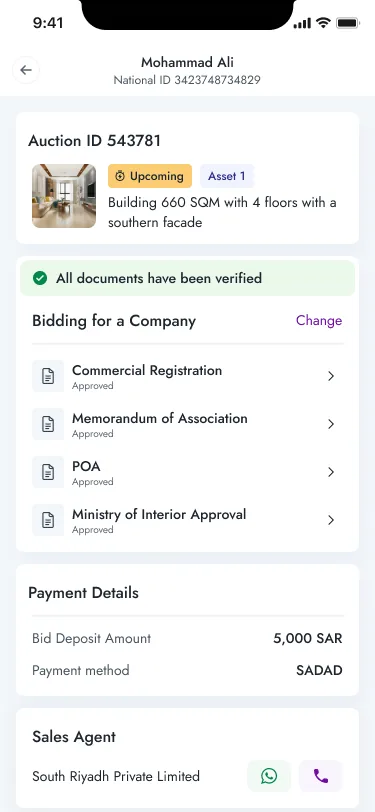
Nobody likes finding out halfway through that they need a document they don’t have. So the paperwork comes first, and it depends on who you are: a Saudi citizen or a resident, bidding for yourself, someone else, an establishment or a company.
03 / Auctions
Three steps to bid
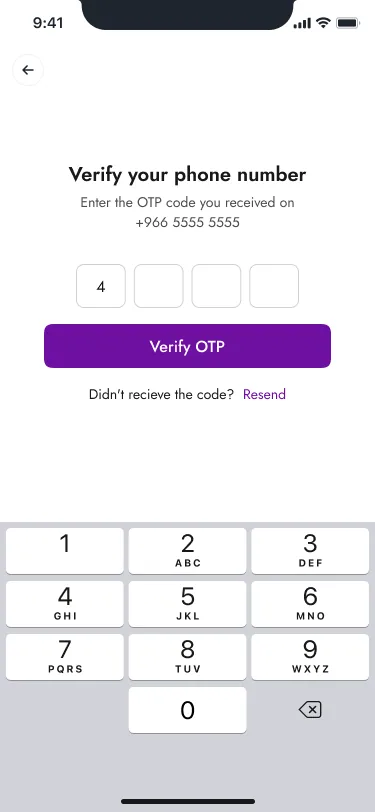
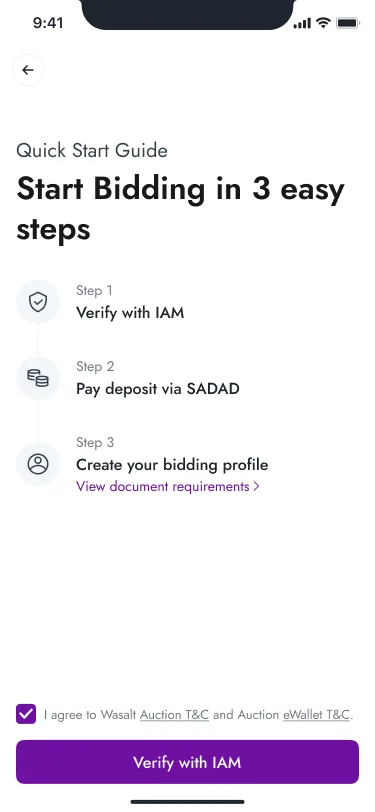
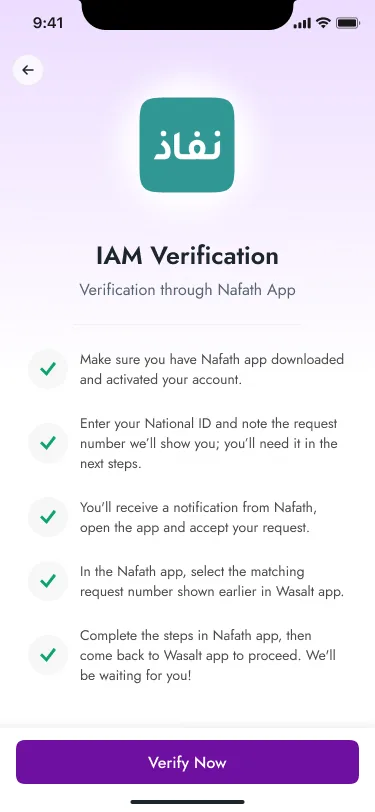
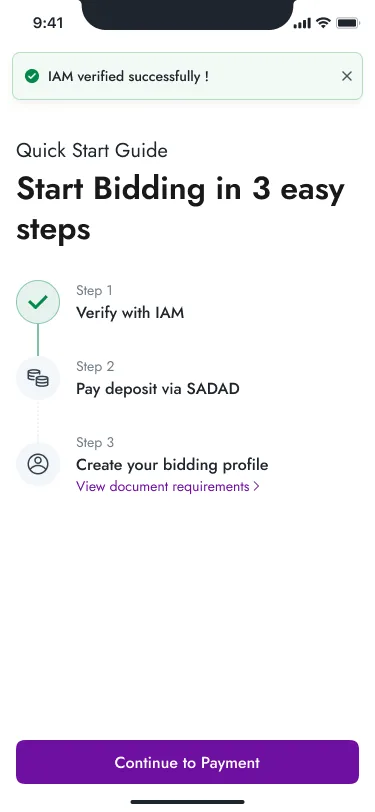
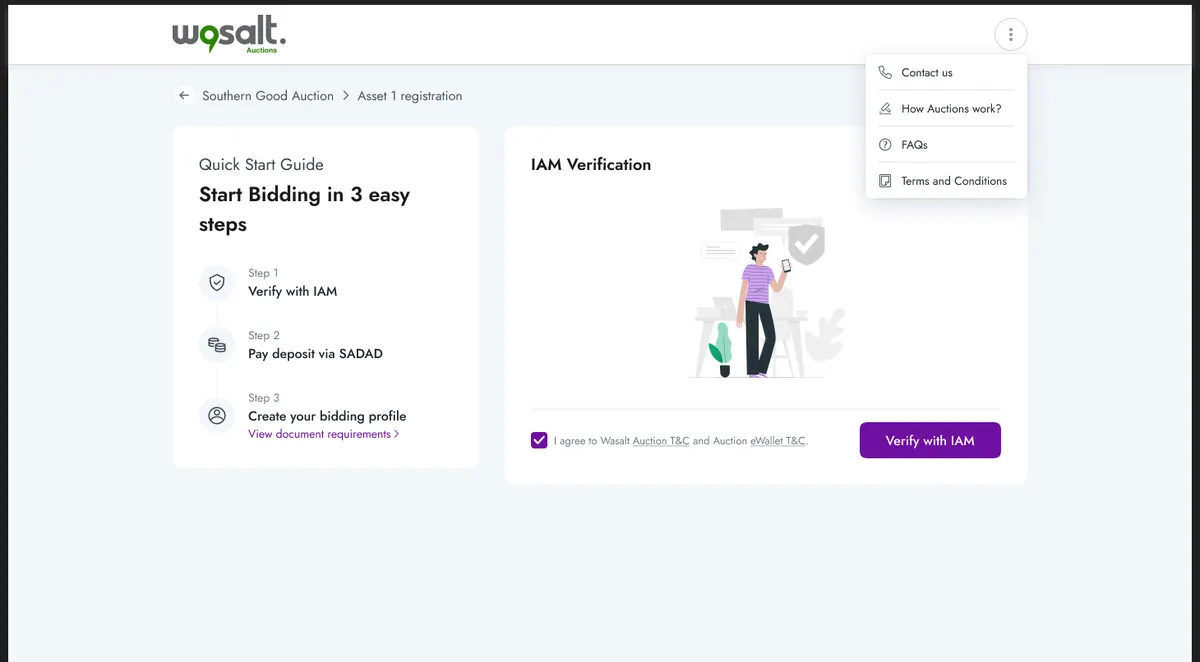
The Quick Start Guide sets out the whole path in three steps: verify with IAM, pay the deposit through SADAD, and create a bidding profile. It ticks each one off as you finish it.
04 / Auctions
A bidding profile
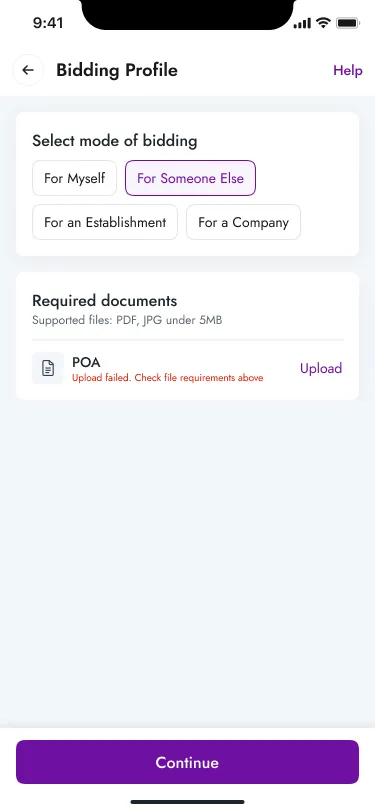
The profile asks how you’re bidding, then only for the documents that apply. An upload that fails says why, right next to the file.
05 / Auctions
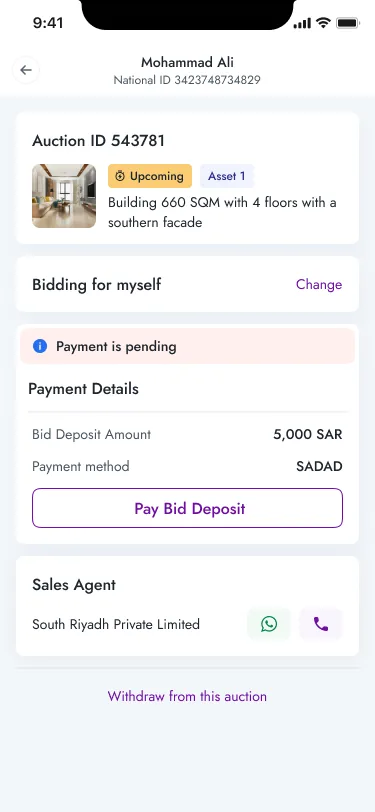
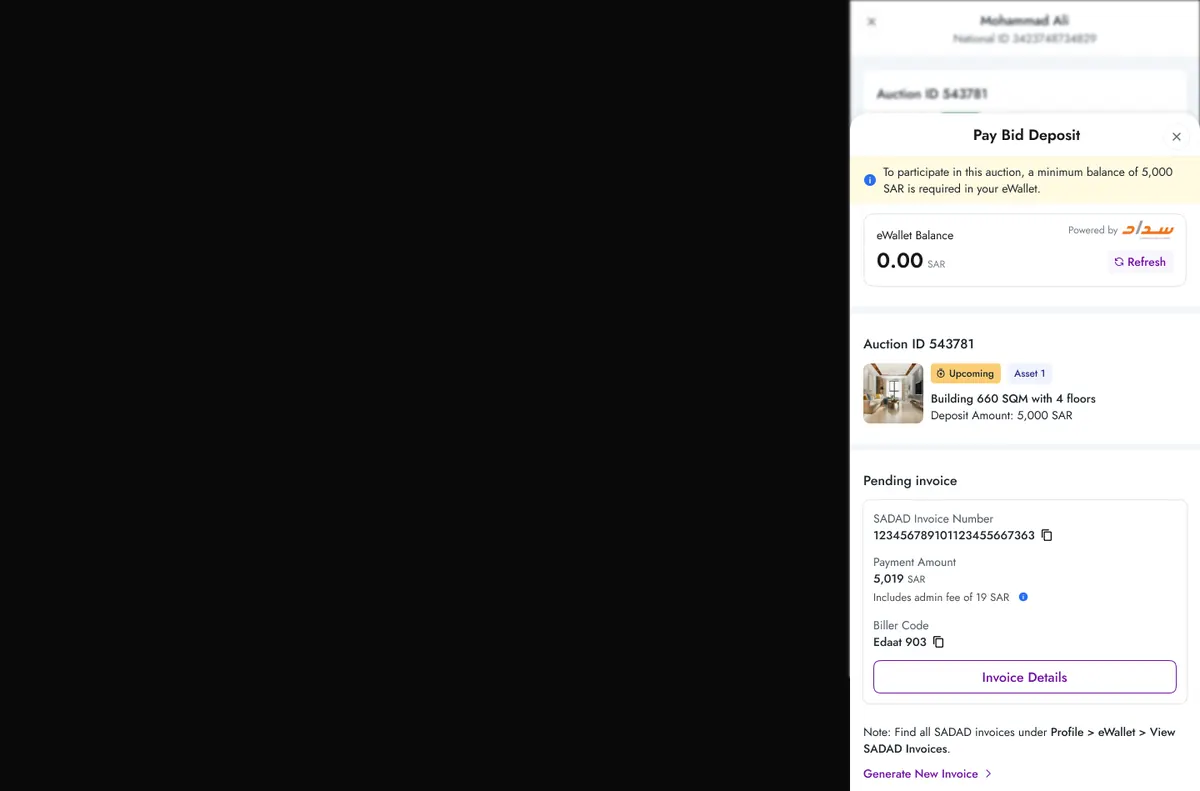
Paying the deposit
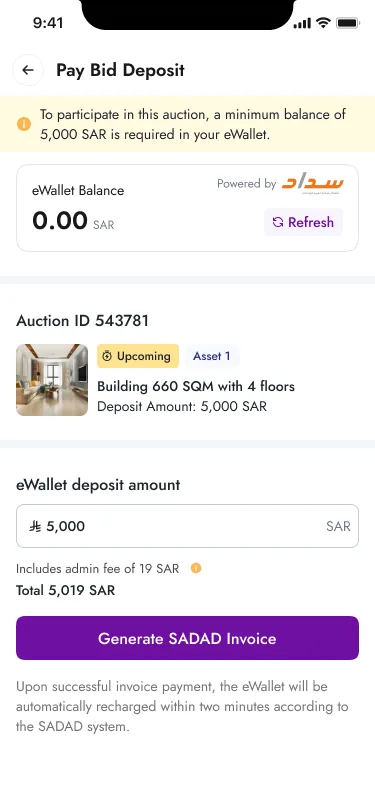
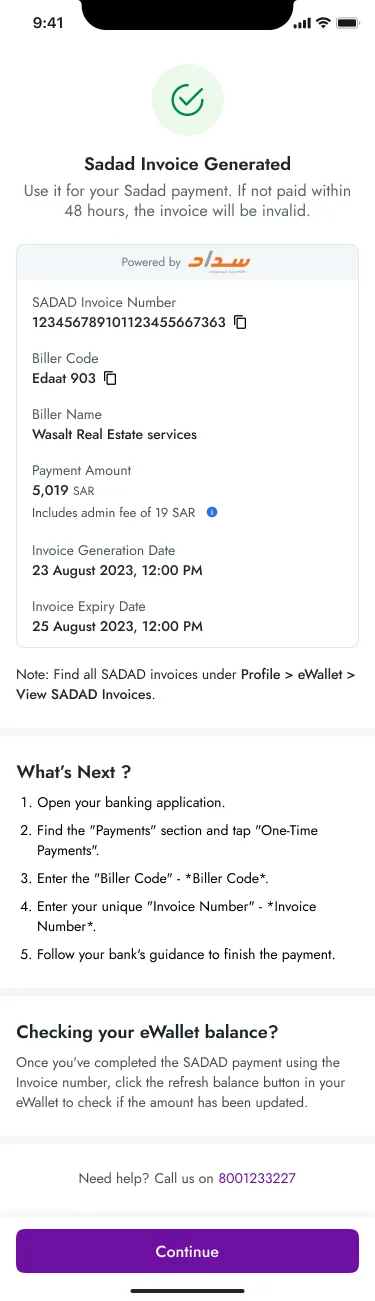
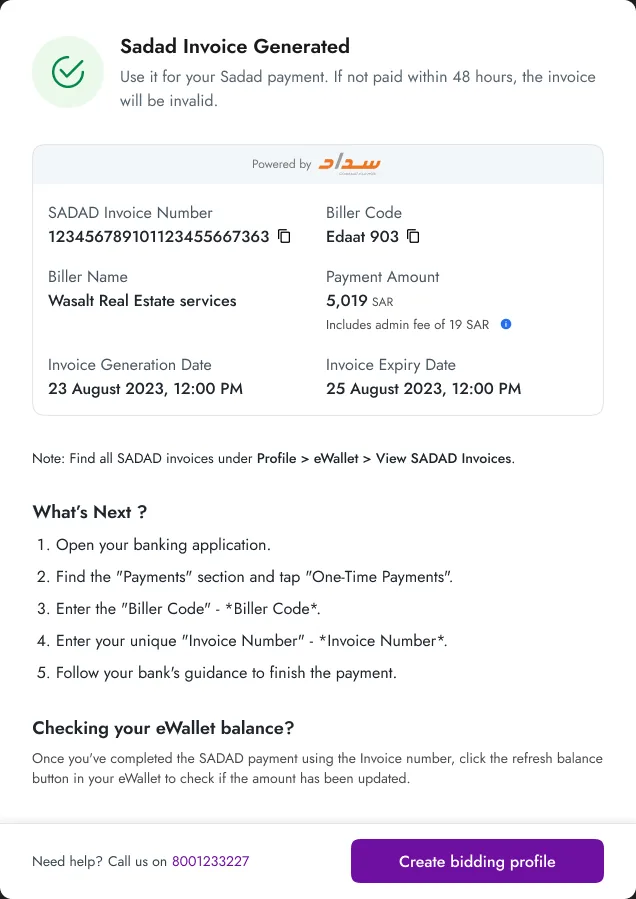
The deposit is paid with a SADAD invoice. The invoice screen gives the biller code and number with copy buttons, the expiry date, and what to do in your bank app, step by step.
06 / Auctions
The live bid
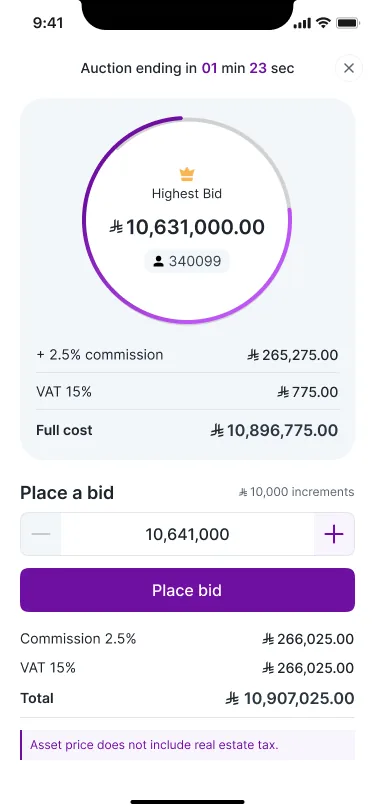
On the bidding screen, the highest bid sits in a ring that counts down. Below it, the full cost is broken out: commission, VAT and the total. Nobody wins an auction and then finds out the real price.
What it adds up to
4 things this branch got right.
- Document lists that fit who is bidding, shown before anything else.
- Three steps, ticked off as you go.
- The full cost is shown before you bid, not after you win.
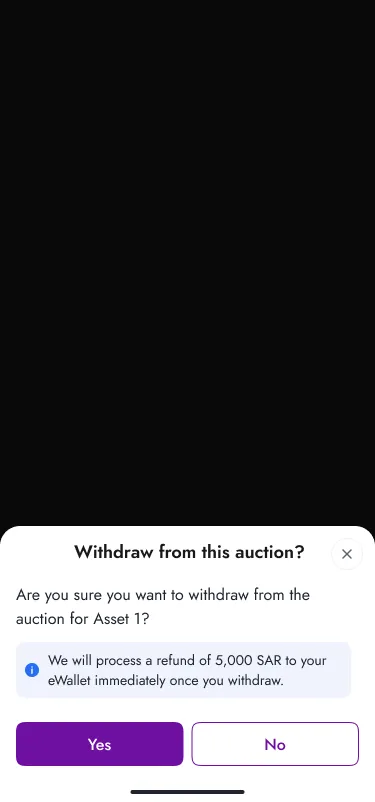
- Every state, from upcoming to pending, gets its own screen.